






facebook_pixelimg
Get in touch

Welcome to Our Helpdesk

You will get all the detailed information for your queries related to our Shopify apps.

Styles & Appearance – Customize Store Locator Design

view 10045 Views
July 07, 2021

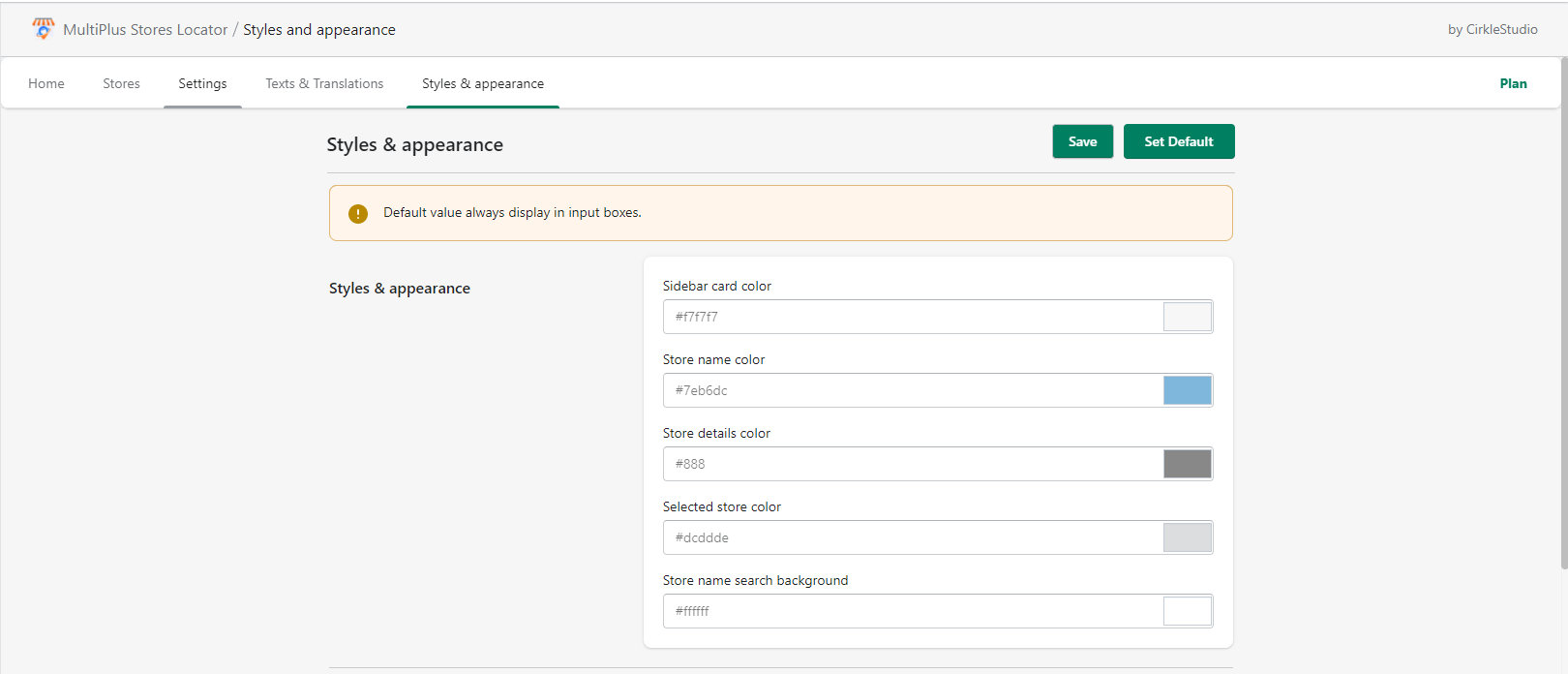
This section allows you to set the colors of different parts of your store locator for better branding and user experience.

Options:

  1. Sidebar Card Color

Default: #f7f7f7 (light grey)

This is the background color for the store sidebar cards (store listings).

Example: You can set it to your brand’s background color.

2. Store’s Color Name

Default: #7eb6dc (blue)

Defines the color of the store names displayed in the locator.

Example: You can match this with your theme’s primary text/link color.

3. Store Details Color

Default: #888 (grey)

Controls the text color of store details like address, phone number, etc.

Example: Set it darker for better readability, like #333.

4. Selected Store Color

Default: #DCA245 (orange/yellow)

Highlights the store that a user clicks/chooses.

Example: Use your brand’s highlight color for consistency.

5. Store Search bar Background (Search done via entering a name)

Default: #ffffff (white)

This is the background color of the search bar where users type the store name.

Example: You can set a light shade or keep it white for clarity.

Steps to Update:

stye & appearance

Step 1: MSL dashboard > Styles & Appearance.

Step 2: Enter your preferred hex color codes or select colors using the picker.

Step 3: Save changes.

Top Search bar Appearance

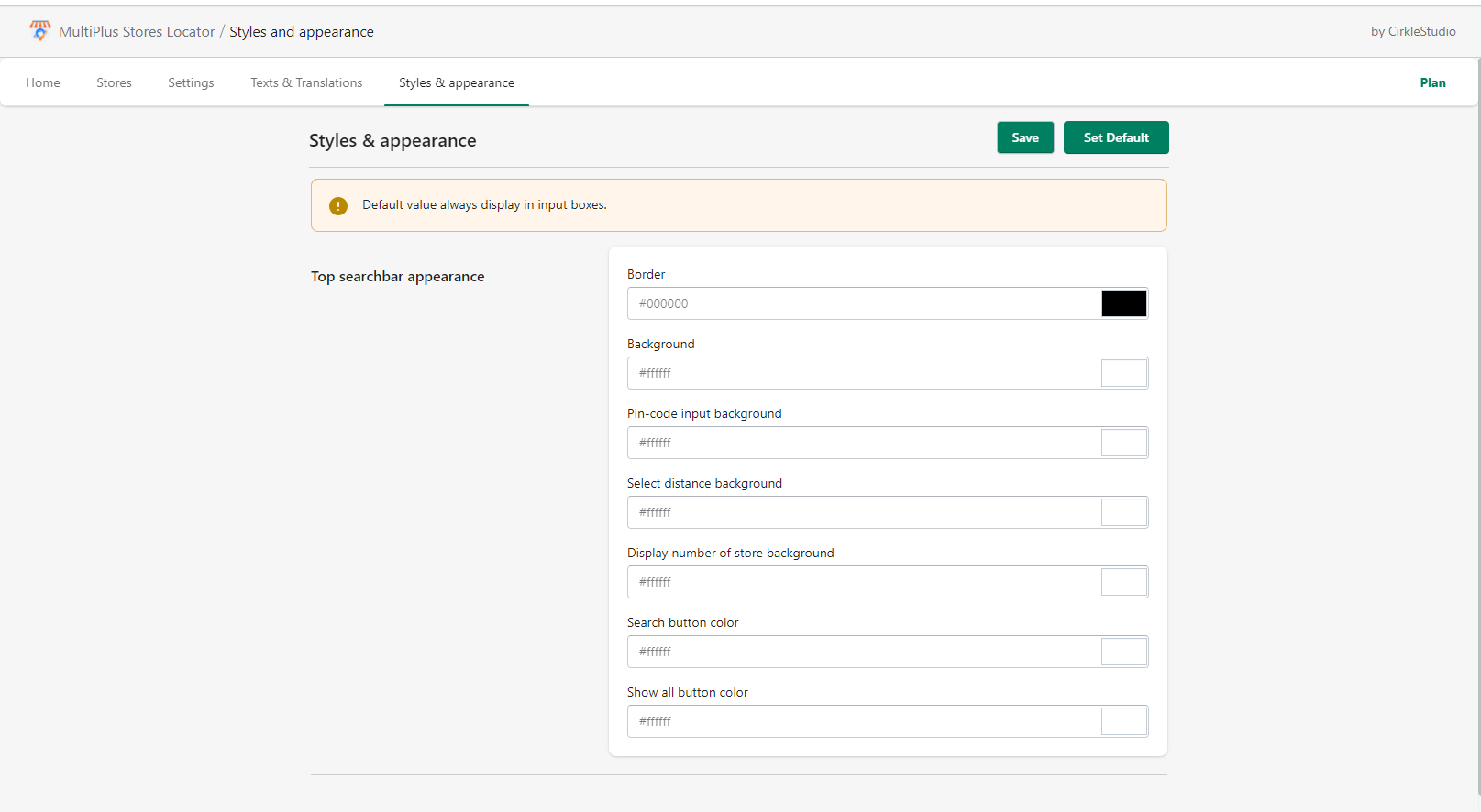
This section allows you to control the colors of the search bar and its elements (pin-code, distance dropdown, buttons, etc.).

Top searchbar appearance

Options:

1. Border

Default: #ffffff (white)

Sets the color of the border around the search bar area.

Example: Use a light grey (#e0e0e0) for subtle borders.

2. Background

Default: #ffffff (white)

Defines the background color of the search bar container.

Example: You can make it match your theme’s header or keep it white for clarity.

3. Pin-code Input Background

Default: #ffffff

Controls the background color of the input field where users enter their pin-code.

4. Select Distance Background

Default: #ffffff

Sets the background color for the distance dropdown field.

5. Display Number of Store Background

Default: #ffffff

Background color for the box that shows the number of stores displayed.

6. Search Button Color

Default: #ffffff

Defines the background color of the search button.

Example: Change this to your brand’s primary button color (e.g., #007BFF blue or #DCA245 gold).

7. Show All Button Color

Default: #ffffff

Sets the background color for the “Show All” button.

Example: Use a secondary brand color to make it stand out.